




 USD
 EUR
 GBP
 CAD
 AUD
 HKD
 JPY
 KRW
 SGD
 NZD
 THB
 TWD
 English
 繁體中文
 日本語
 한국어
 ไทย
 Bahasa Indonesia
 Français
 Español
 Deutsch
 Português
 Nederlands
 Tiếng Việt

By EVPADPro | 13 August 2025 | 0 Comments
How to Register the Mobile Version of UnblockTech UBox12 for Live TV with the UPLive 2.0 App?
The UnblockTech UBox12 is one of the most popular TV boxes for watching live TV and on-demand content. But did you know that you can also register its mobile version to enjoy live streaming directly on your smartphone and pad? Here’s a complete step-by-step guide to help you get started using the UPLive 2.0 App. You need to download the UPLive 2.0 App first.
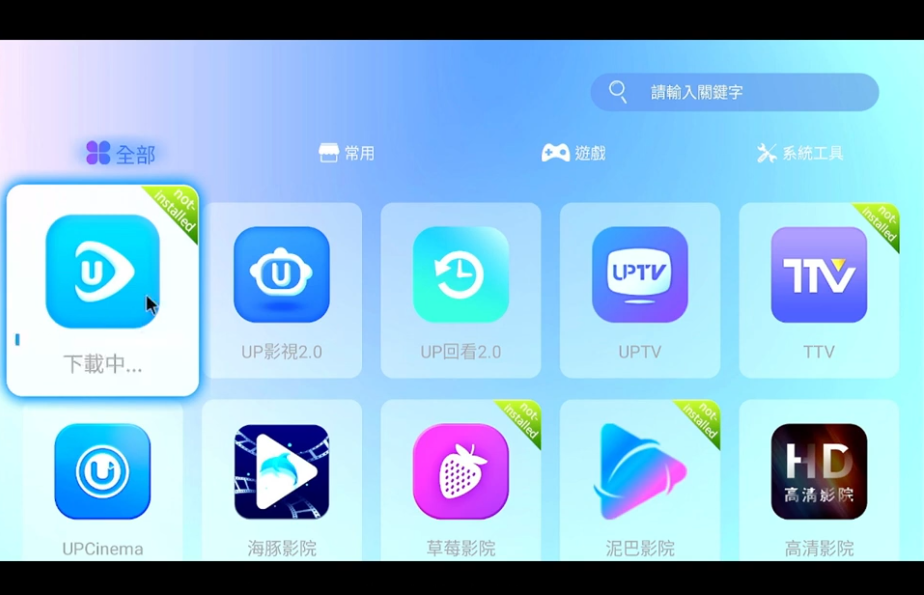
Step 1: Open the Registration Menu
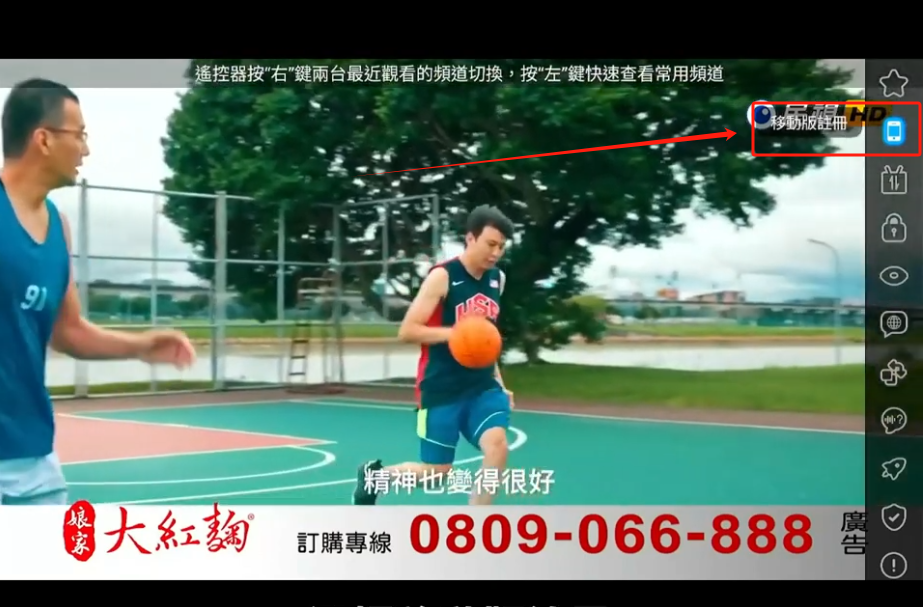
Using your UBox12 remote control, press the Menu button. From the on-screen options, select Mobile Version Registration.
Step 2: Download the APK
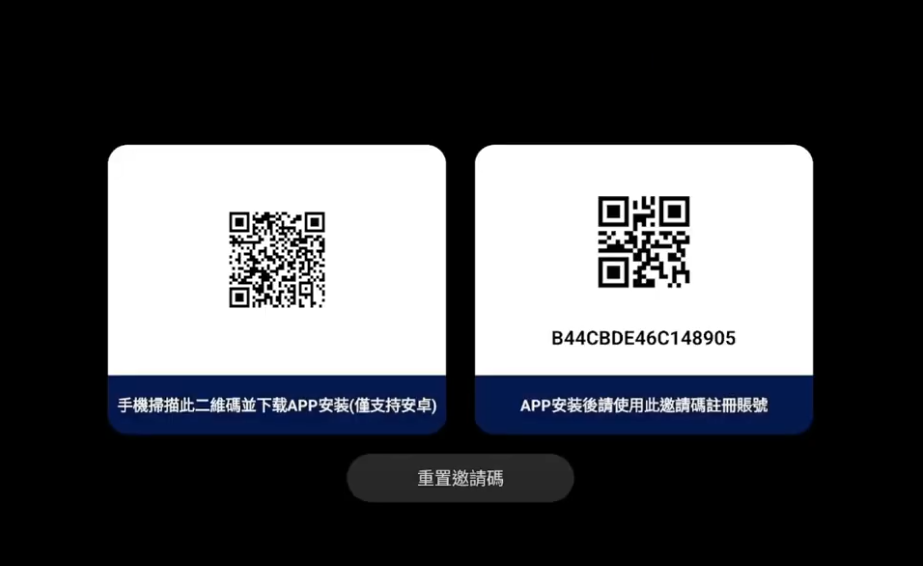
You will see a QR code on your TV screen. Scan this code with your phone to download the UPLive 2.0 APK file.
Tip: If your invitation code has already been used by someone else, simply click Reset QR Code on your TV to get a new one.
Step 3: Install the App on Your Phone
Once the APK download is complete, install it on your smartphone. This will allow you to run the UPLive 2.0 mobile app.
Step 4: Register Your Account in the Mobile App
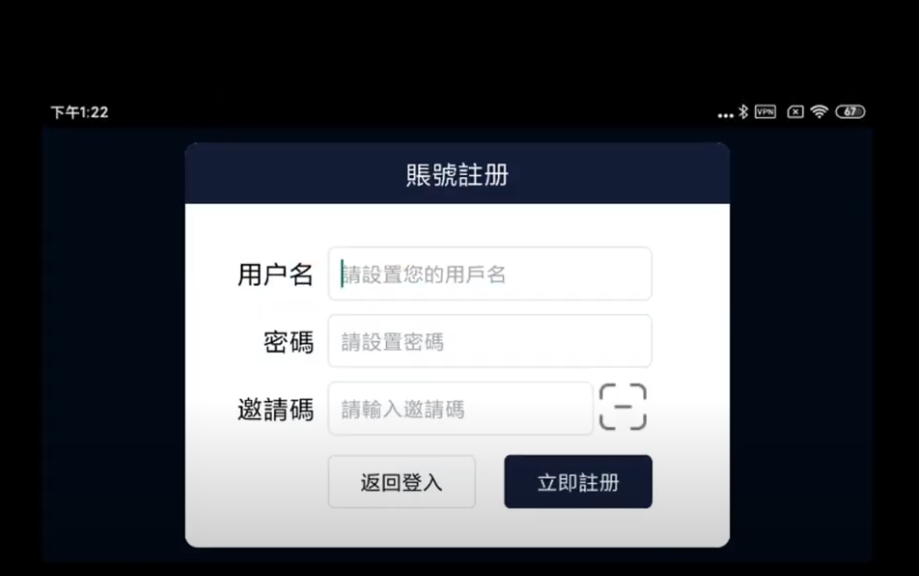
Open the UPLive 2.0 app on your phone.
Tap Register.
Enter a username and password.
Both must be 8–20 characters long.
No spaces are allowed in either field.
If your username does not meet the requirements, you will receive a “Username Failed” error message. Simply adjust and try again.
Once successful, the app will display: "UB Live Registration Successful" and automatically log you in.
Step 5: Log In to Your Account
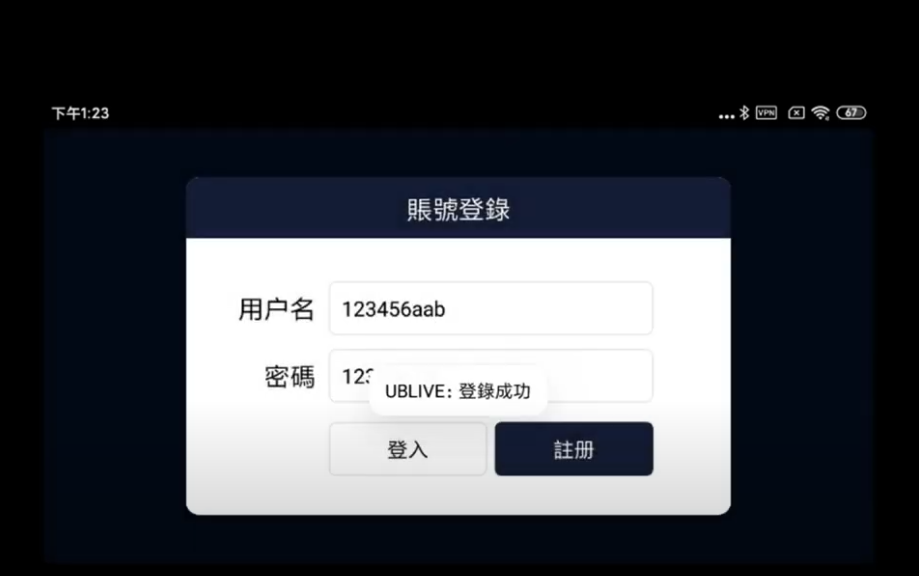
After registration, tap Return to Login. Enter the username and password you just created, then tap Login.
If you see the message "UB Live Login Successful", you’re all set to start watching live TV on the mobile version.
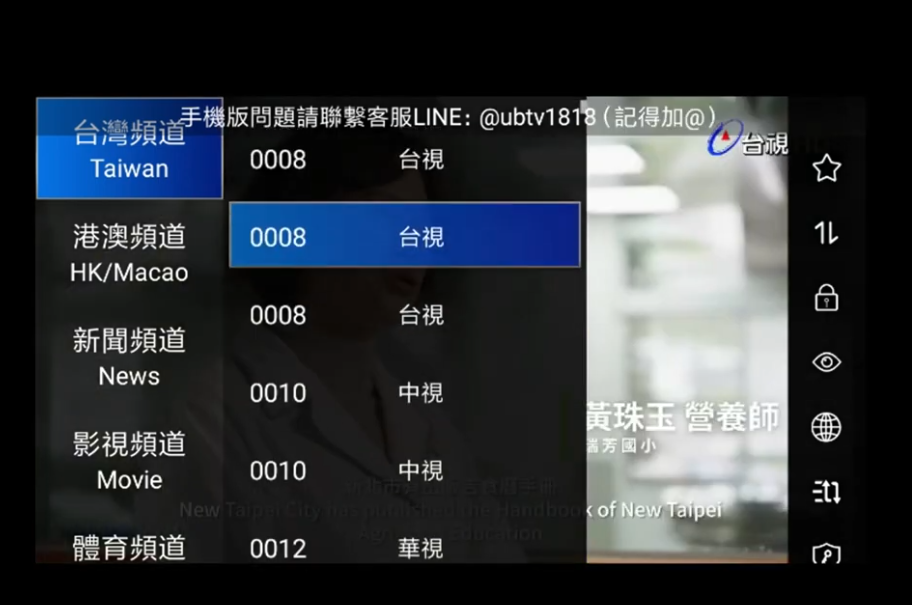
Enjoy Live TV Anywhere
That’s it! You can now watch your favorite live TV channels anytime, anywhere, directly from your smartphone—perfect for when you’re away from your UBox12 TV box. Enter the coupon code evpad95 for 5% off, free delivery to your door, one gift, and lifetime free technical support!
Step 1: Open the Registration Menu
Using your UBox12 remote control, press the Menu button. From the on-screen options, select Mobile Version Registration.
Step 2: Download the APK
You will see a QR code on your TV screen. Scan this code with your phone to download the UPLive 2.0 APK file.
Tip: If your invitation code has already been used by someone else, simply click Reset QR Code on your TV to get a new one.
Step 3: Install the App on Your Phone
Once the APK download is complete, install it on your smartphone. This will allow you to run the UPLive 2.0 mobile app.
Step 4: Register Your Account in the Mobile App
Open the UPLive 2.0 app on your phone.
Tap Register.
Enter a username and password.
Both must be 8–20 characters long.
No spaces are allowed in either field.
If your username does not meet the requirements, you will receive a “Username Failed” error message. Simply adjust and try again.
Once successful, the app will display: "UB Live Registration Successful" and automatically log you in.
Step 5: Log In to Your Account
After registration, tap Return to Login. Enter the username and password you just created, then tap Login.
If you see the message "UB Live Login Successful", you’re all set to start watching live TV on the mobile version.
Enjoy Live TV Anywhere
That’s it! You can now watch your favorite live TV channels anytime, anywhere, directly from your smartphone—perfect for when you’re away from your UBox12 TV box. Enter the coupon code evpad95 for 5% off, free delivery to your door, one gift, and lifetime free technical support!